Send an offer from the company page
Send a proposal as a tracked link and choose whether every reader gets their own.
Continue for free
Enter your email to open this lesson. You stay signed in for 7 days on this device.
What to set
- Upload the proposal as a PDF under Offers, then Documents.
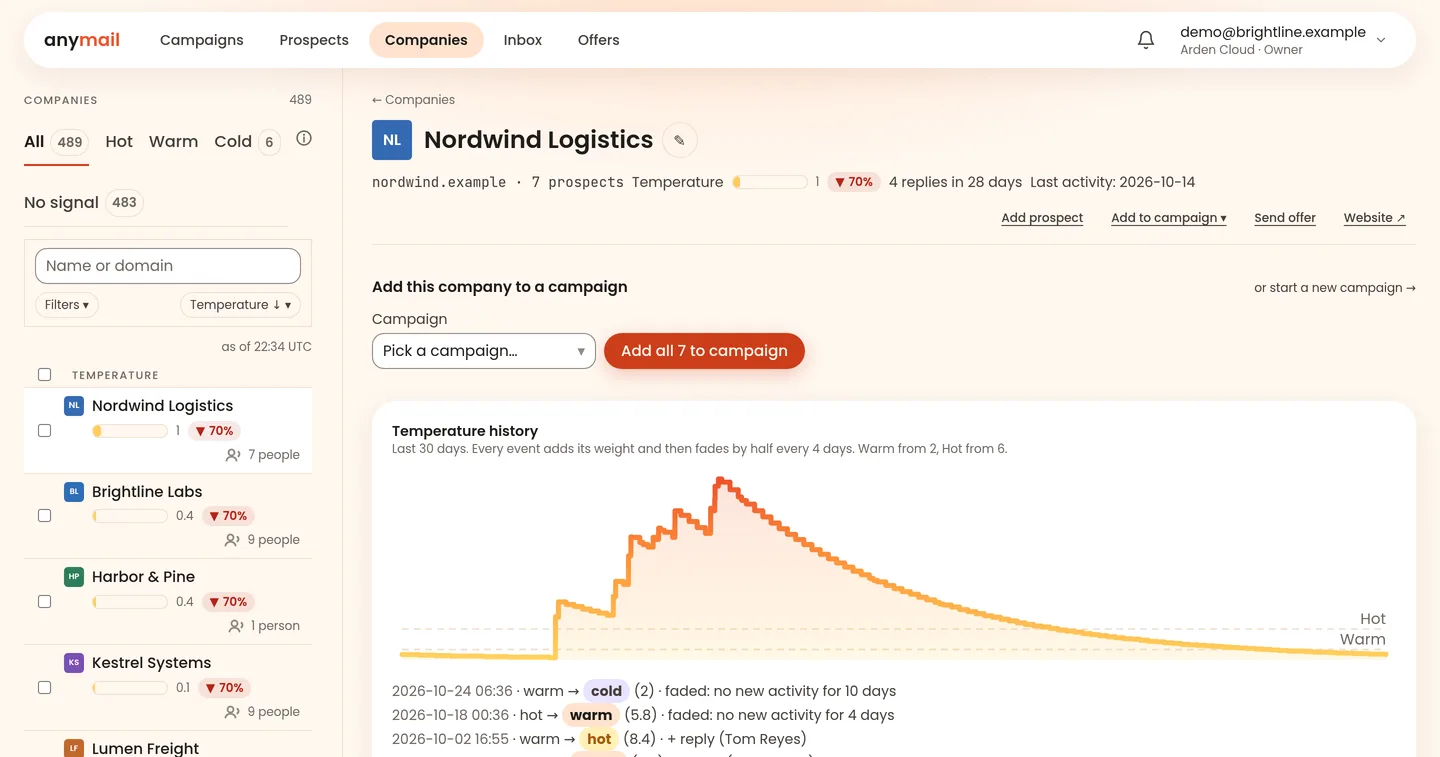
- On the company page, choose Send offer.
- Pick the Offer document, give the offer a name, find the recipients and write the Subject.
- With several recipients, choose One email to everyone, one shared link, or A separate email to each person: tracked one by one.
- Put {{offer_link}} where the link should appear. Without it, the link goes at the end of the email.
- Press Send offer, or Generate link only (no email sent) to paste the link somewhere else.
Why it matters
An attachment goes quiet once it is sent. A tracked link shows who opened the offer, which pages they read and whether they came back, and every visit adds to the company temperature.
Watch out for
- Recipients confirm their email address with a code before they see the offer. Mention it in the email.
- One shared link cannot tell readers apart. Send separate emails when you want to know who read what.
- Set up a tracking domain first. Offer links on your own domain land in the inbox more often.
Good practice
- Keep the proposal short and put the price where people expect it.
- Send the offer soon after a positive reply, while the interest is fresh.
- Send separate links to the person who replied and to the decision maker.
In the demo workspace
Anke at Brightline Labs asked for details. Jane uploads a three-page proposal and sends it as separate emails to Anke and Piotr.