Create the campaign and plan the sequence
Open a draft, name it and plan the steps before you write a single email.
Continue for free
Enter your email to open this lesson. You stay signed in for 7 days on this device.
What to set
- Open Campaigns and choose Create campaign. anymail creates a draft and opens the editor.
- Rename the draft in the bar at the top. The default name is Untitled campaign with the date.
- Look at the three tabs: Sequence, Settings and Summary. Each one shows how many items still need fixing.
- Plan the steps before you write: how many emails, how far apart, and where a call or a LinkedIn message fits.
Why it matters
A draft is a safe place to work. Nothing sends until you run it, and the launch checklist shows what is still missing. Planning the steps first gives each email one job, which makes the sequence easier to read, test and change.
Watch out for
- The draft exists the moment you press Create campaign. Rename it straight away so it is easy to find later.
- One campaign should carry one audience and one offer. Two offers belong in two campaigns.
- Name the campaign after the audience and the period, so the stats are easy to compare later.
Good practice
- Three to five steps over two to three weeks is a solid default for a first sequence.
- Give each step a short internal name, such as Intro or Case study, so the canvas reads like a plan.
- If the first email will not come, write the follow-ups first. They are often easier.
In the demo workspace
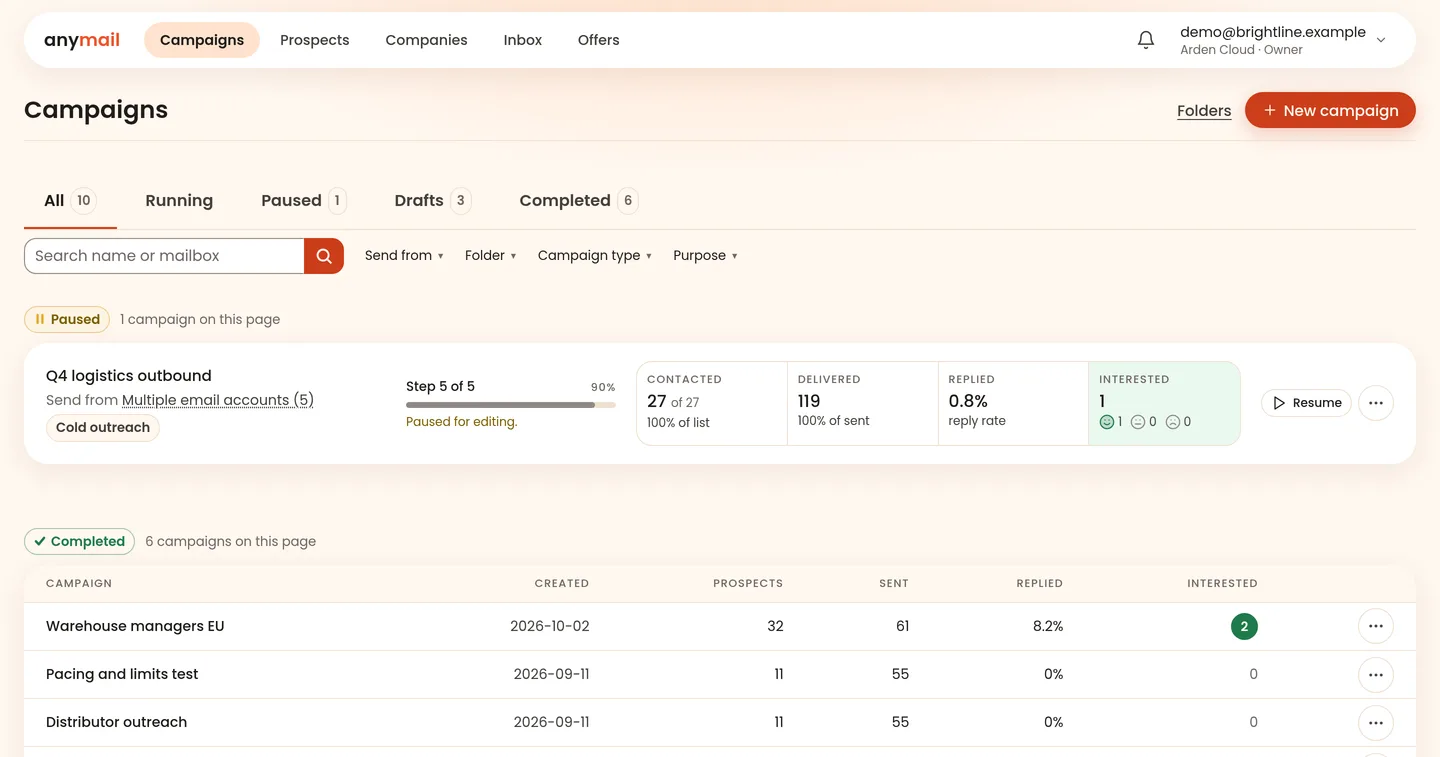
Jane creates the campaign and names it Q4 logistics outbound. Her plan has five steps: verify the list, an intro email, a follow-up three days later, a call for people with a phone number, and a last email.